Moment Wide 18mm Mobile Lens (Getting Started)

Everything you need to know to set up, use, and shoot with the Moment Wide 18mm Lens for mobile devices.

An image without an alt, whoops

Introduction

I'm going to guide you through getting started with the Moment 18mm Wide Lens and how to achieve the best results using your mobile device.

An image without an alt, whoops

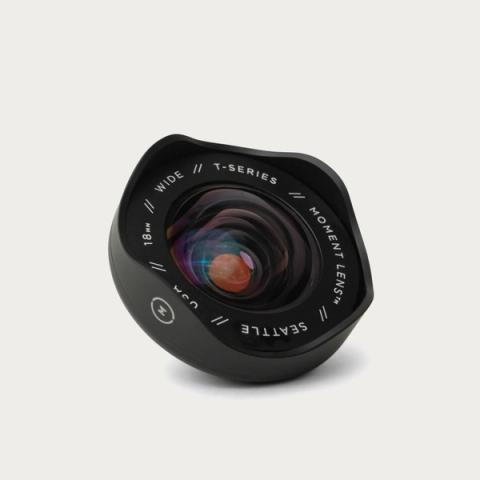
Wide 18mm Mobile Lens - T-Series

Moment

Meet our Wide 18mm, the perfect wide-angle lens for mobile photographers and filmmakers. Instead of the usual distorted ultra-wide shots from your phone, this gem offers a beautifully broad yet genui...

Add for $125
An image without an alt, whoops

What You'll Need:

The preferred way to mount your lens is by using a Moment case. If we don't have a case for your phone, we also offer a universal lens mount.

What's In the Box:

  • The 18mm Wide Lens itself.
  • A front and rear lens cap.
  • A premium microfiber-lined lens pouch.
  • A quick start guide.

It's all packaged cleanly with that classic Moment design.

An image without an alt, whoops

Setup Guide:

Attaching the lens is simple. Take your Moment case and line up the lens bayonet with the camera cutout, then rotate clockwise until it locks into place.

Your lens is aligned correctly when the Moment logo is oriented on the right side of your device. Remember, this lens is designed to be used with the 1x camera.

When attaching your lens, be sure not to over-tighten it. As you turn the lens clockwise, you'll feel it lock into place with a gentle halt. If you push the lens any further, you may cause damage.

An image without an alt, whoops

Using the 18mm Wide Lens:

The 18mm Wide lens is perfect for landscapes, architecture, group shots, interior photography, street scenes, and vlogging. It provides a beautifully broad yet natural perspective, capturing more of every scene without distortion.

ProRAW for More Editing Control

For higher-quality images with more flexibility in editing, turn on Apple ProRAW if your iPhone supports it.

ProRAW is especially helpful for wide scenes with tricky light, like sunsets, bright skies, dark interiors, or landscapes with both highlights and shadows. It gives you more room to recover detail, adjust color, and fine-tune the final look.

How to Enable ProRAW on iPhone

  1. Open Settings
  2. Tap Camera
  3. Tap Formats
  4. Turn on Apple ProRAW or ProRAW & Resolution Control, depending on your iPhone model
  5. Open the Camera app
  6. Tap the format option at the top of the screen and choose RAW when you want to shoot in ProRAW

For the best results, use RAW when you’re shooting intentionally and want the most flexibility later.

Use HEIF Max or RAW Max for More Detail

On supported iPhones, you can choose higher-resolution options like HEIF Max or RAW Max in the Camera app.

Use HEIF Max when you want a high-resolution image with a smaller file size.

Use RAW Max when you want the most editing flexibility and don’t mind larger files.

Best Framing Tip

Use the iPhone’s native 1x camera with the 18mm Wide Lens mounted. This gives you the cleanest optical result from the Moment lens.

Avoid switching to the iPhone’s built-in 0.5x ultra-wide camera while using the lens, since the 18mm is designed to widen your main camera without the more warped, stretched look of the native ultra-wide.

Aspect Ratio Tip

Use 4:3 for the most flexible file. It captures the full sensor area and gives you more room to crop later for Instagram, web, prints, or thumbnails.

Use 16:9 only when you already know you want a wider, more cinematic crop.

Using Moment Pro Camera App II

For the cleanest results with the 18mm Wide Lens, open the Moment Pro Camera App II and select the main 1x camera before shooting. The lens is designed to work over your iPhone’s primary camera, so using 1x gives you the sharpest image and most natural wide-angle look.

In the app, you can also use manual controls to lock your focus, shutter speed, ISO, and white balance, which is especially helpful when shooting landscapes, interiors, or video clips where you don’t want the exposure or color shifting mid-shot.

For photos, shoot in RAW when you want maximum editing flexibility.

For video, use the app to lock exposure and white balance before recording so your footage feels more polished and consistent, especially when moving through mixed light.

Shot on Wide 18mm on Samsung S24.
An image without an alt, whoops

Editing Your Photos

After capturing your shot, I recommend editing in Snapseed, a free mobile app. It lets you:

  • Edit RAW files
  • Adjust white balance and exposure
  • Add effects, all from your phone

Check out the video linked at the top of the page for quick visuals on how I edit.

An image without an alt, whoops

Final Thoughts

So, now you're ready to get out there and capture some incredible images with the 18mm Wide Lens by Moment. Tag @moment on your photos, we’d love to see what you create. And if you have any other questions please email us at hello@shopmoment.com!

An image without an alt, whoops

FAQs

💌 There's More!

Enjoyed this read? Subscribe now and receive all the latest and greatest articles straight to your inbox. All original. Community first. 100% ad-free.

SUBSCRIBE NOW